# Lock Specific Cells in Excel Using Java
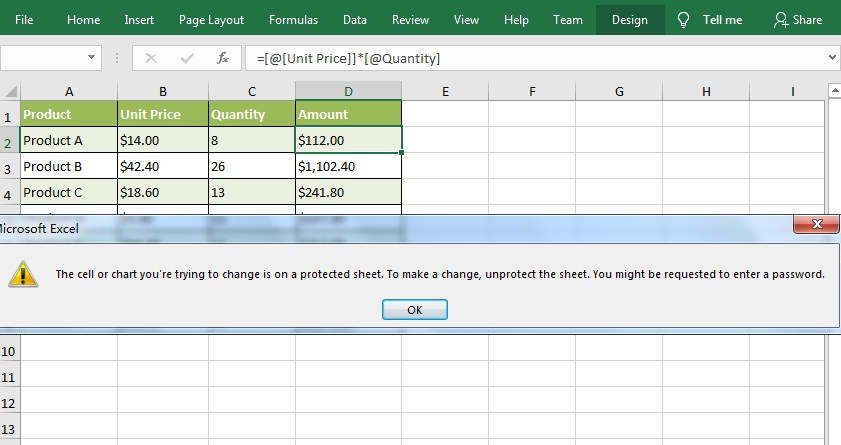
In Microsoft Excel, you can **lock specific cells** to prevent the data or formulas in them from being modified by other users. In this article, you will learn how to achieve this task programmatically using [Free Spire.XLS for Java](https://www.e-iceblue.com/Introduce/free-xls-for-java.html).
### Install the free API (2 Method)
**1#** Download the [free API](https://www.e-iceblue.com/Download/xls-for-java-free.html) and unzip it, then add the Spire.Xls.jar file to your project as dependency.
**2#** Directly add the jar dependency to maven project by adding the following configurations to the pom.xml.
```xml
com.e-iceblue
e-iceblue
http://repo.e iceblue.com/nexus/content/groups/public/
e-iceblue
spire.xls.free
5.1.0
```
### Steps and Sample Code
Normally, the locked option is enabled for all cells in a worksheet. Therefore, all cells must be unlocked before locking a cell or a range of cells. Also kindly note that locking cells doesn’t take effect until the worksheet is protected.
1. Create an instance of **Workbook** class.
2. Load the Excel file using **Workbook.loadFromFile()** method.
3. Get the desired worksheet using **Workbook.getWorksheets().get(sheetIndex)** method.
4. Access the used range in the worksheet and then unlock all the cells in the range using **XlsRange.getStyle().setLocked()** method.
5. Access specific cells and then lock them using **XlsRange.getStyle().setLocked()** method.
6. Protect the worksheet using **XlsWorksheetBase.protect()** method.
7. Save the result file using **Workbook.saveToFile()** method.
```java
import com.spire.xls.*;
import java.util.EnumSet;
public class LockCells {
public static void main(String []args){
//Create a Workbook instance
Workbook workbook = new Workbook();
//Load an Excel file
workbook.loadFromFile("test.xlsx");
//Get the first worksheet
Worksheet sheet = workbook.getWorksheets().get(0);
//Unlock all cells in the used range of the worksheet
CellRange usedRange = sheet.getRange();
usedRange.getStyle().setLocked(false);
//Lock specific cells
CellRange cells = sheet.getRange().get("D2:D9");
cells.getStyle().setLocked(true);
//Protect the worksheet with password
sheet.protect("123456", EnumSet.of(SheetProtectionType.All));
//Save the result file
workbook.saveToFile("LockCells.xlsx", ExcelVersion.Version2016);
}
}
```