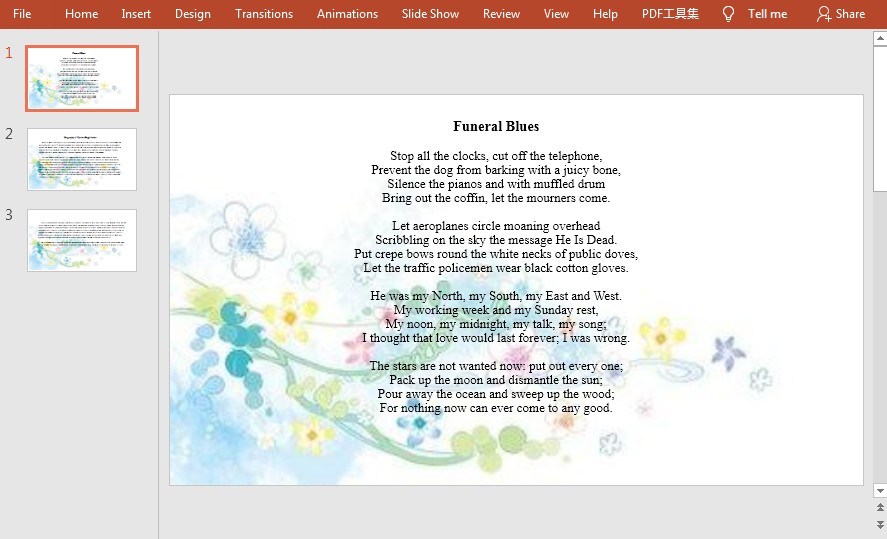
# [Java] Apply Background Image to PowerPoint Slides
When manipulating a Powerpoint document, the background is very important. A unified background image can make the whole document looks cleaner and more attractive. This article will introduce how to apply background image to all slides in a PowerPoint document by using Free Spire.Presentation for Java.
**Installation**
**Method 1:** Download the [Free Spire.Presentation for Java](https://www.e-iceblue.com/Download/presentation-for-java-free.html) and unzip it. Then add the Spire.Presentation.jar file to your project as dependency.
**Method 2:** You can also add the jar dependency to maven project by adding the following configurations to the pom.xml.
```java
com.e-iceblue
e-iceblue
http://repo.e-iceblue.com/nexus/content/groups/public/
e-iceblue
spire.presentation.free
2.6.1
```
**Java Code**
```java
import com.spire.presentation.FileFormat;
import com.spire.presentation.Presentation;
import com.spire.presentation.SlideBackground;
import com.spire.presentation.drawing.*;
import javax.imageio.ImageIO;
import java.awt.image.BufferedImage;
import java.io.FileInputStream;
public class AppplyBgToAllSlides {
public static void main(String[] args) throws Exception {
//load a PowerPoint file
Presentation presentation = new Presentation();
presentation.loadFromFile("test1.pptx");
//get the image data
BufferedImage bufferedImage = ImageIO.read(new FileInputStream("background.jpg"));
IImageData imageData = presentation.getImages().append(bufferedImage);
//loop through the slides
for (int i = 0; i < presentation.getSlides().getCount() ; i++) {
//apply the image to the specific slide as background
SlideBackground background = presentation.getSlides().get(i).getSlideBackground();
background.setType(BackgroundType.CUSTOM);
background.getFill().setFillType(FillFormatType.PICTURE);
background.getFill().getPictureFill().setFillType(PictureFillType.STRETCH);
background.getFill().getPictureFill().getPicture().setEmbedImage(imageData);
}
//save the file
presentation.saveToFile("output/BackgroundImage.pptx", FileFormat.PPTX_2013);
presentation.dispose();
}
}
```