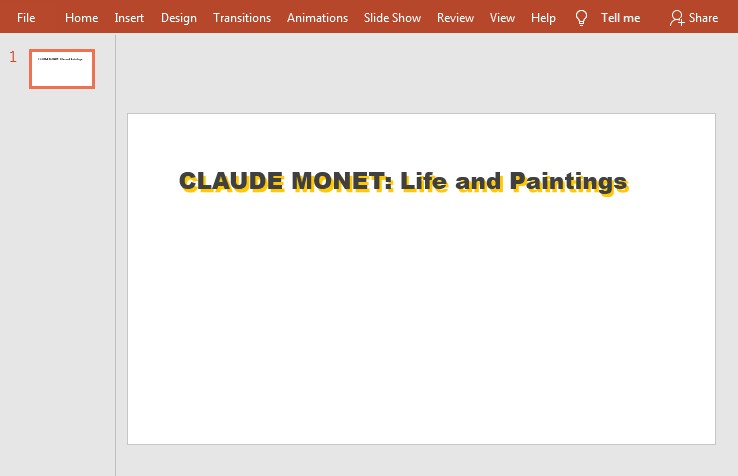
# Apply Shadow Effect to Text in PowerPoint Using Java
In PowerPoint documents, shadow effects can not only be [applied to shapes](https://janezzz.hashnode.dev/java-adding-shadow-effects-to-shapes-in-powerpoint-ckfdop31b0at72zs13x7af306) to make them more vivid, but also can be applied to text to beautify the monotonous text. This article will share how I add shadow effect to the text in a PowerPoint slide by using a 3rd party free Java library (Free Spire.Presentation for Java).
**Installation(2 Methods)**
● Download the [Free Spire.Presentation for Java](https://www.e-iceblue.com/Download/presentation-for-java-free.html) and unzip it. Then add the Spire.Presentation.jar file to your project as dependency.
● You can also add the jar dependency to your maven project by adding the following configurations to the pom.xml.
```xml
com.e-iceblue
e-iceblue
http://repo.e-iceblue.com/nexus/content/groups/public/
e-iceblue
spire.presentation.free
3.9.0
```
**Code Snippets:**
```java
import com.spire.presentation.*;
import com.spire.presentation.drawing.FillFormatType;
import com.spire.presentation.drawing.OuterShadowEffect;
import java.awt.*;
import java.awt.geom.Rectangle2D;
public class SetShadowEffect {
public static void main(String[] args) throws Exception {
//Create a Presentation object
Presentation presentation = new Presentation();
presentation.getSlideSize().setType(SlideSizeType.SCREEN_16_X_9);
//Get the first slide
ISlide slide = presentation.getSlides().get(0);
//Add a rectangle to slide
IAutoShape shape = slide.getShapes().appendShape(ShapeType.RECTANGLE,new Rectangle2D.Float(50,60,800,100));
shape.getFill().setFillType(FillFormatType.NONE);
shape.getLine().setFillType(FillFormatType.NONE);
//Set text of the shape
shape.appendTextFrame("CLAUDE MONET: Life and Paintings");
//Set font style
shape.getTextFrame().getTextRange().setFontHeight(38f);
shape.getTextFrame().getTextRange().setLatinFont(new TextFont("Arial Black"));
shape.getTextFrame().getTextRange().getFill().setFillType(FillFormatType.SOLID);
shape.getTextFrame().getTextRange().getFill().getSolidColor().setColor(Color.DARK_GRAY);
//Create a OuterShadowEffect object
OuterShadowEffect outerShadow= new OuterShadowEffect();
//Set the shadow effect
outerShadow.setBlurRadius(0);
outerShadow.setDirection(50);
outerShadow.setDistance(10);
outerShadow.getColorFormat().setColor(Color.orange);
//Apply shadow effect to text
shape.getTextFrame().getTextRange().getEffectDag().setOuterShadowEffect(outerShadow);
//Save to file
presentation.saveToFile("output/AddShadow.pptx", FileFormat.PPTX_2013);
}
}
```